
What if you could access Google Analytics, Search Console, and broaden your audience base without ever leaving WordPress?
Google Site Kit makes it possible. It is a free WordPress plugin that allows website owners and site admins to connect crucial Google tools directly inside your WordPress dashboard. Site Kit is Google's official plugin that helps users understand how people find and use their site.
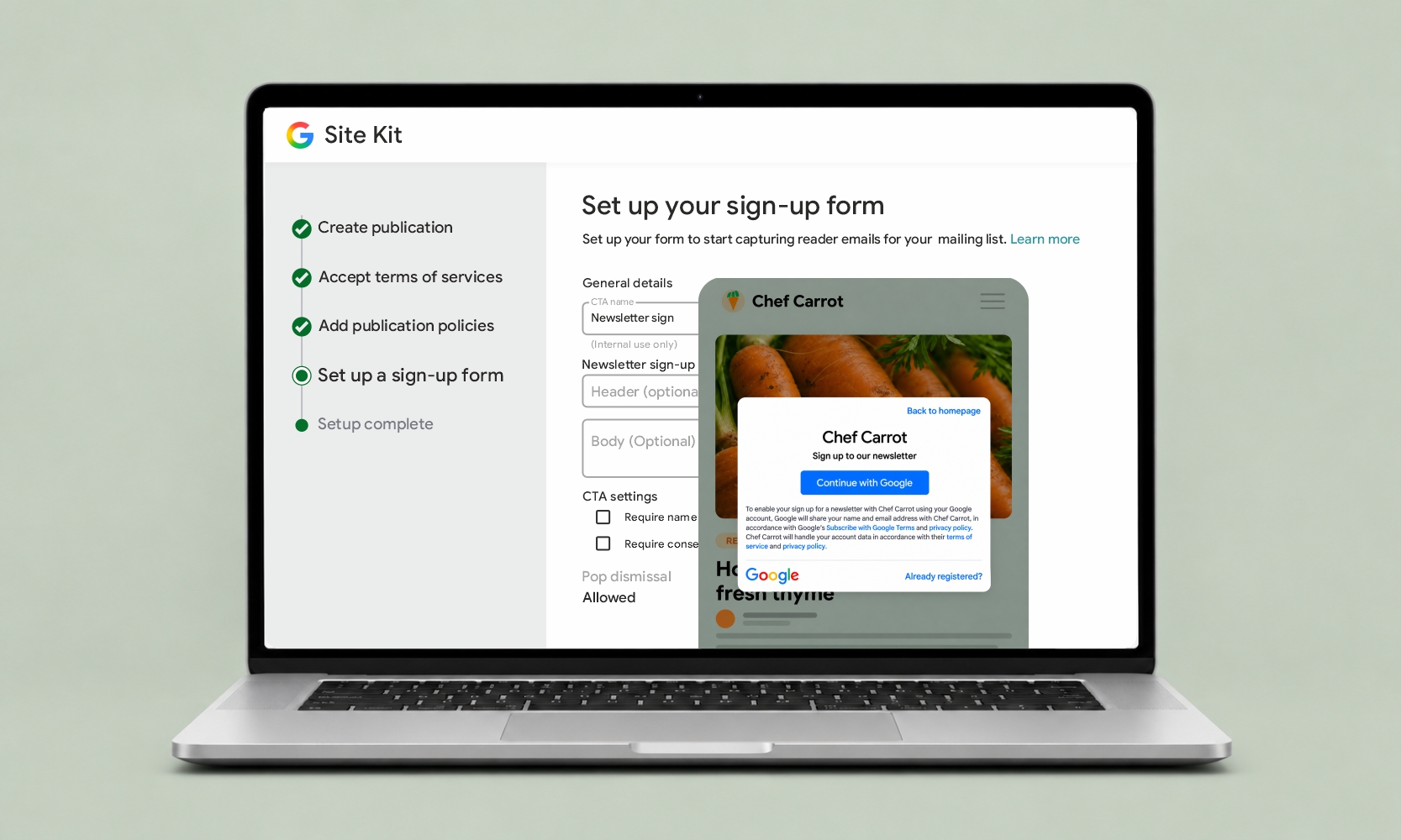
Now, the Site Kit plugin gets a new feature, newsletter sign-up CTAs, with the aim of supporting websites in growing their audience. With the new capability, you can launch a newsletter sign-up CTA directly from the WordPress dashboard while collecting newsletter sign-ups, building an email list for further engagement, and connecting directly with site visitors.
Notably, Google's Site Kit connects Google tools like Search Console, AdSense, Ads, and Analytics, and Reader Revenue Manager directly to the WordPress dashboard. Alongside these, the new feature will help you manage your website better and broaden your site's audience base. In this blog, we will assess the newsletter sign-up CTA feature and understand how to add a newsletter sign-up form to WordPress.
Understanding Google Site Kit's Newsletter Sign-up CTA
Google Site Kit's newsletter sign-up CTA feature enables site owners to easily enhance their audience base. The feature helps you quickly launch a sign-up form while Site Kit handles the verification steps. You can easily customize the form by writing personalized messages, previewing the newsletter live, and selecting pages to show the sign-up form before publishing.
Specifically, your theme does not need coding or editing, which indicates that there is no need to break a specific site's layout to collect emails as well. The feature is now available for all WordPress sites using Site Kit with Reader Revenue Manager.
How to Add a Newsletter Sign-up Form: Step-by-Step Guide
The newsletter sign-up CTA is a free feature that can be easily used by just following specific steps. Firstly, you have to ensure the following elements:
- Install Site Kit: You can install Site Kit from within the WordPress Plugins menu or manually by uploading the google-site-kit folder to the /wp-content/plugins/ directory.
- Set up Reader Revenue Manager: To use the newsletter sign-up form on WordPress, you need to set up Reader Revenue Manager. Do it directly within the Site Kit dashboard or go to the Publisher Center > select publication > click Reader Revenue Manager > select a content access prompt.
After ensuring the above-mentioned elements are in place, you can follow the following steps to use a newsletter sign-up form on WordPress: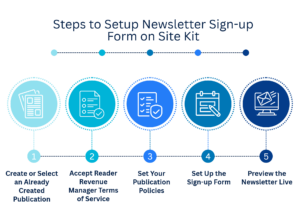
Step 1 - Create or Select an Already Created Publication
After setting up Reader Revenue Manager, choose an existing publication or create one if you do not already have one.
Step 2 - Accept Reader Revenue Manager Terms of Service
Next, make sure you agree to the Reader Revenue Manager Terms of Service. Do it if you have not done it yet.
Step 3 - Set Your Publication Policies
You need to add publication policies in this step, offering your site's terms of service URL and privacy policy URL.
Step 4 - Set Up the Sign-up Form
Add details to your sign-up form, such as CTA name, header and body text, display placement, and consent requirements. Once the details are added and you are ready to launch your sign-up form, press the Publish to your site button.
Notably, if your publication already has other types of CTAs, such as a survey, and the new CTA takes place last, you can change the order in the Publisher Center. Another aspect to keep in mind is that you can only create the first newsletter sign-up form in the Site Kit plugin. If you want to create more sign-up forms, you can do it in the Publisher Center.
Step 5 - Preview the Newsletter Live
Once you publish the newsletter sign-up form, you can preview the same live on your site.
Following the form setup and publishing of the sign-up form, the subscriber data gathered goes to the user's Reader Revenue Manager account. You can view, manage, and export your subscriber lists from the Publisher Center.
You can manage your newsletter sign-up settings and adjust advanced configurations for your form through Site Kit > Settings > Connected Services > Reader Revenue Manager > Edit > Newsletter sign-up form > Manage settings.
How Does the Newsletter Sign-up Form in WordPress Help Businesses?
One of the biggest advantages of Site Kit's newsletter sign-up CTA feature for businesses is its ability to enlarge the audience base and capture leads without needing custom code or extra form plugins. The feature highlights zero technical friction, as site owners can launch it directly from the WordPress dashboard without writing code or editing theme files. This eliminates the risk of breaking the site layout.
Additionally, the feature offers a medium for direct communication with site visitors. Site owners and businesses can capture visitor email addresses and create lists of targeted accounts. Moreover, integration with Reader Revenue Manager lets you engage with site visitors in different ways.
Other Key Features of Google Site Kit Plugin in WordPress
The Google Site Kit plugin makes using Google products flexible and disruption-free. Here are the major features, apart from the newsletter sign-up CTA, to check out:
- Get easy-to-understand statistics on the WordPress dashboard.
- Review stats from different Google products within a single dashboard.
- Configure multiple Google tools in minutes, with no source code changes required.
- Assess metrics for a complete site and for individual posts as well.
- Manage permissions easily across WordPress and Google products.
- Get tailored metrics according to your set goals and track progress.
- Understand what your site visitors are looking for and strategize a better plan to engage.
- Identify which content is driving higher popularity and engagement.
Set Up Your Newsletter Sign-up Form Today and Get Higher Engagement!
The Site Kit by Google is a free WordPress plugin that helps site owners understand how their site is performing and how to improve their strategy. The latest newsletter sign-up CTA feature helps you engage your audience more effectively. The biggest benefit is that it eliminates the need to write code or edit theme files.
So, have you tried setting up Reader Revenue Manager in Site Kit and adding newsletter forms to your website yet? Visit KnowledgeNile and explore more step-by-step guides to use emerging technologies.
FAQs:
What are the top 5 plugins for WordPress?
Answer: The leading five WordPress plugins in 2026 are Elementor, Yoast SEO, WooCommerce, Site Kit, and LiteSpeed Cache.
What is the use of Google Site Kit?
Answer: Site Kit is Google's official WordPress plugin that connects your website to key Google tools and displays performance metrics within a single WordPress dashboard.
How do I use Google Analytics with WordPress?
Answer: You can add Google Analytics and other Google tools to WordPress by using Google's Site Kit plugin.
You May Also Like:
Top 5 WordPress SEO Plugins to Enhance Your Website’s Ranking
WordPress Updates Its AI Experiments Plugin to Simplify Review & Image Generation from Text Prompts