
We all received a notification, ‘Your Gmail storage is almost full,’ at least once in our lives. But have you ever thought your Gmail inbox might hold more than just emails? Think about forgotten attachments, years-old newsletters, and messages you have not opened in ages! Together, they can contribute to your storage woes. Additionally, Gmail’s 15 GB of space is shared across Google Drive, Photos, and Android device backup.
Once your Google or Gmail storage fills up, you cannot receive emails, leading to missed information and documents. In such situations, the only option users are left with is buying extra space.
But did you know that you can reclaim space without spending a rupee? Yes, you can refrain from paying for extra space by following a few smart steps. This blog will offer 10 methods to manage Gmail storage once it gets full. Firstly, let us understand what happens when our Gmail storage gets full...
What Happens When Your Gmail Storage Gets Exhausted?
When your 15GB of free Gmail storage is full, you may face several challenges. Here are the common ones:
- You will not be able to send or receive emails.
- Google Drive will stop working.
- Google Photos will stop automatic backup sync.
- You will receive continuous alerts as your storage approaches its limit.
Why Is Your Gmail Storage Full?
The sudden notification about Gmail storage getting exhausted creates tension among users. But we often do not understand why it is actually full. So, before freeing up space, it is important to understand where your storage is being used excessively. Here are the common reasons-
- Large email attachments: Every time someone sends you a high-resolution photo, video, or large document via email, it stays attached to that email until you delete it. Such emails consume more space than text-only emails.
- Years-old messages and newsletters: Text-only emails or promotional newsletters often seem smaller in size. But over time, the volume of such emails increases, consuming significant space.
- Files stored in Google Drive: We often forget that Gmail storage is shared across Drive and Photos. So, bigger files saved in Drive also take up space.
- Photos and videos backed up to Google Photos: Using Google Photos to back up photos and videos is a common practice. But media backups can push you close to getting a notification that your Gmail storage is getting full.
- Items remaining in Trash and Spam: We commonly delete emails from the primary inbox but forget to remove them from the trash box. As a result, a pile of useless emails builds up, taking up storage.
10 Things to Do When Your Gmail Storage is Full
1. Find What Is Consuming Your Space
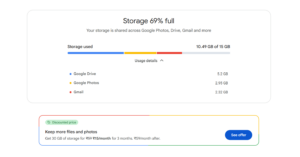
First, identify what is taking up your space before deleting or removing anything from your Gmail account. It will help you understand what exactly is eating up your space across Gmail, Photos, and Drive. You can accordingly plan which files and emails to keep. Follow the steps below for this purpose-
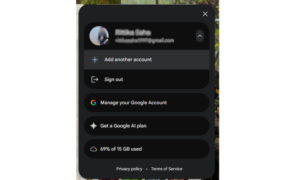
- On your phone: Gmail app -> Profile picture -> “Manage your Google Account” -> Data & privacy -> Storage.
- On a computer: Gmail -> Profile picture -> Manage your Google Account -> Data & privacy -> Storage.
2. Clear Spam and Trash
Your spam box can contain large emails that you are unaware of. Also, when you delete an email from your Primary tab, it goes to trash and stays there for the next 30 days. So, it is important to empty the spam and trash folders to clear space in Gmail storage. Here are the steps to empty spam and trash-
- Clear spam: Gmail -> Spam -> “Delete all spam now.”
- Clear Trash: Gmail -> Trash -> “Empty trash now.”

3. Turn Off Photo Sync
The next tactic is to disable the automatic photo syncing option in your Google Photos app. It is important to turn the feature off before you start deleting photos, as it can remove the files from your phone as well. Follow the steps below:
- Google Photos -> Profile picture -> Photos settings -> Backup -> Turn it off
4. Clean Photos and Videos on Google Photos
Google Photos usually stores the larger files that consume most of your Gmail storage. Review photos and videos in the app alongside deleting unnecessary files, duplicates, blurry photos, screenshots, and others. Also, empty the trash after deleting, as files stay there for 60 days and keep taking up space.
You have to manually select and delete files. After deleting, go to the trash or bin and press “Empty trash”.
5. Start Using the Cleanup Tool
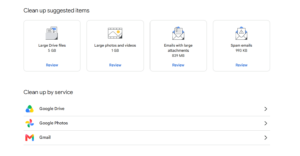
Many of us are unaware, but Google offers a dedicated tool, Google One Storage Manager, to identify which files or emails are consuming most of your space across Gmail, Drive, and Photos. Accordingly, you can manage and delete those files from your Google or Gmail storage. The tool also suggests files that you can clean up. Follow the steps below to use the tool:
- Open Google One Storage Manager -> Review Clean up suggested items -> Select and Delete Items -> Clear Bin
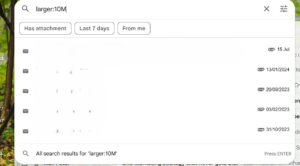
6. Delete emails with large attachments
Forgotten emails with gigabytes of attachments have to be deleted to manage Gmail storage smartly. Such emails often contain unnecessary photos, videos, documents, and other files. Review and delete such emails to free up significant space. You can follow the given steps to trace emails with large attachments:
- Gmail -> Type larger:10M in the search bar -> Review emails with large attachments -> Delete
7. Clear Old Promotional Mails
We seldom review promotional emails, but they pile up over months and take up significant storage. So, before your Gmail storage gets full, delete promotional emails. Here are the steps to follow:
- Gmail -> Promotions tab -> Tick the box at the top -> “Select all conversations” -> Delete

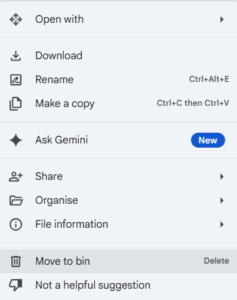
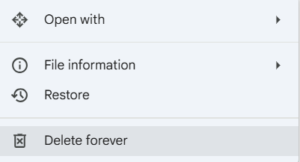
8. Remove unwanted files from Drive
Google Drive often becomes a common and safe place to store age-long data, including documents, photos, videos, and others. However, some files become irrelevant and useless after a time. Deleting them can help you manage Gmail storage smartly.
- Open Drive -> Sort files from oldest to newest -> Review Files -> Move to bin -> Delete forever
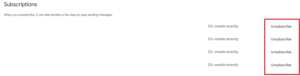
9. Unsubscribe from unwanted newsletters and mails
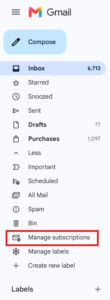
Recurring emails and newsletters are often promotional emails that bear no value to receivers. Once you unsubscribe, you will not have to delete them manually and can address your storage concerns. Follow the steps below to unsubscribe from unwanted emails and newsletters-
- Open Gmail -> Manage subscriptions -> Review your subscriptions -> Press Unsubscribe
10. Review sent emails with large files
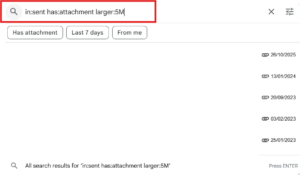
The emails we send with large attachments also take up space in our Gmail storage. Hence, reviewing and deleting the needless sent emails is necessary to free up space. You can trace sent emails with large attachments by going to the Sent tab and searching for: has:attachment larger:5M.
This will allow you to trace sent emails with larger attachments than 5GB. You can review and delete accordingly.
In Conclusion!
Another Gmail storage warning? Do not panic, and do not pay just yet for extra space. Follow the above-mentioned steps to manage Gmail storage wisely. It is worth noting that deleted emails in Gmail and files across Drive and Photos can stay in the trash or bin folders for 30-60 days. So, it is necessary to remove the files and emails from there. You can also refer to Google’s descriptive guide to help users manage storage in Gmail, Drive, and Photos.
KnowledgeNile is a hub for tech blogs, news, and more. Follow our content updates and stay in the know in the tech-first era.
FAQs:
Q. How to clear storage in Gmail without paying?
Ans: You can clear storage in Gmail without paying by deleting emails with large attachments and managing space in Google Drive and Photos.
Q. Is there a Gmail storage limit?
Ans: Yes, Gmail offers a free storage limit of 15GB for standard personal accounts.
Q. Why is my Gmail storage so full?
Ans: When your emails and files in Google Drive and Photos reach the 15GB free limit, your Gmail storage fills up.
Q. What takes up most storage on Gmail?
Ans: Large attachments, such as photos, videos, PDFs, and other files, take up most of your Gmail storage.
You May Also Like:
How to Change Your Gmail Address without Creating a New Account?